BlackVue DR970X-2CH Plus and DR970X-2CH LTE Plus Dash Cameras Field Test

By Jeff Daum, Ph.D., PPA

The focus (yes, literally and figuratively 😊 ) of this review is a comparison of two new BlackVue dash cameras, DR970X-2CH Plus and DR970X-2CH LTE Plus, to my current benchmark, the BlackVue DR900S-2CH camera unit.  I reviewed the DR900S in 2020 and found it to be an excellent choice out of the already crowded field of dashcams.  You can see my review here https://insight.daumphotography.com/2020/07/11/product-review-blackvue-dr900s-2ch-field-test/ .  The new DR970X Plus units were provided to me by the Marketing Team of Pittasoft Company, who manufactures the BlackVue units in their own factory in Korea.

Technically speaking based on BlackVue press releases, the DR970X Plus appears to have several improvements over the DR900S including a faster processor chip, improved CMOS sensors, and in the case of the DR970X-2CH LTE Plus, built in SIM card capability.   Top of my interest in carrying out this comparison and review is the DR970X Plus noticeably better in actual day-to-day use?

Before jumping into the field results, here are some of the respective technical specifications.

Physical dimensions:

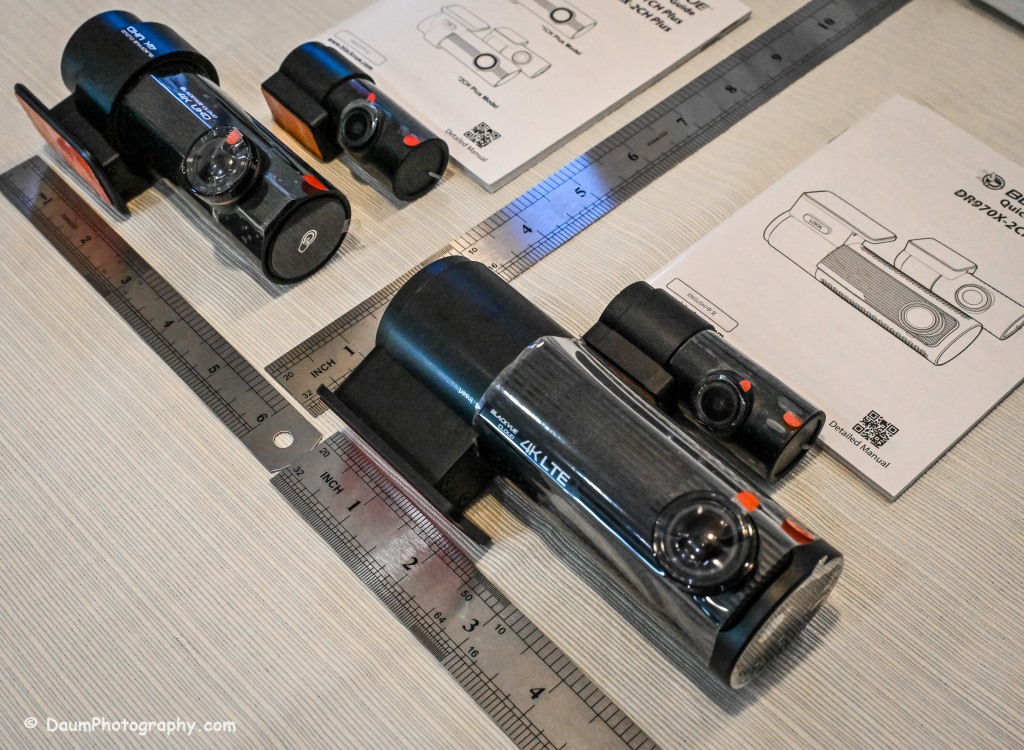
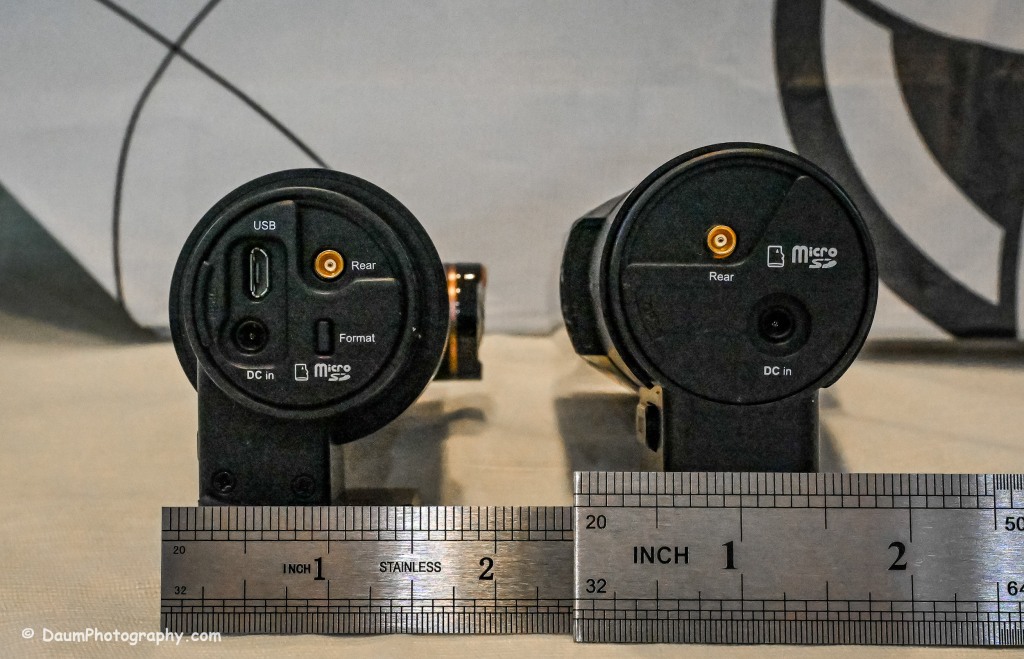
The DR970X-2CH Plus and DR970X-2CH LTE Plus have identical core components, that is, the lens, sensor, chips, etc., with the exception that the DR970X-2CH LTE Plus has a built-in LTE SIM micro card receiver and related circuitry.  This results in the DR970X-2CH LTE Plus being a little larger and slightly heavier than the sister unit.

DR970X-2CH LTE Plus vs DR970X-2CH Plus vs DR900S:

  -Weight with mount: 6.8 oz (192.7g) vs 5 oz (141.7g) vs 4 oz (113.39g)

  -Dimension: 5.42in (137.6mm) L x 2.67in (60.3mm) W x 1.69in (43mm) H vs 4.67in (118.6mm) L x 1.86in (47.7mm) W x 1.4 (36mm) H vs 4.66in (118.5mm) L x 1.4in (36mm) H

The rear camera is essentially physically the same on all three models: 2.6in (66mm) L x 1.1in (27.94mm) D and 1.0 oz (28.35g)

The DR970X Plus and the DR900S are almost the same physical size and weight, with the DR970X-2CH LTE being almost 2 ounces (56g) heavier as well as somewhat longer and rounder than the other two.

The lenses:

The DR970X-2CH Plus cameras (remember, both units are identical with respect to cameras and image capture) have a 125-degree horizontal and 68-degree vertical lens in the front unit, with a 107-degree horizontal and 55-degree vertical viewing angle in the back camera.  The DR900S-2CH camera has a slightly wider capture with a 136-degree horizontal and 77-degree vertical lens in the front unit, with a 116-degree horizontal and 61-degree vertical viewing angle in the back camera.

The resolutions and frame rates are identical for all three units at their highest settings: 3840×2160 @ 30 fps.

Image quality for the DR970X-2CH Plus units is 60+10 Mbps at the highest setting vs the DR900S is 25+10 Mbps, and all three have the same 8+6 Mbps with quality set to Normal.

Compression Codec is the same on all three units: H.265 (HEVC), H.264 (AVC)

Additional technology:

The DR970X-2CH Plus cameras use a STARVIS 2 CMOS Sensor of approximately 8.4 Megapixels on the front camera and a STARVIS CMOS Sensor or approximately 2.1 Megapixels on the rear camera, while the DR900S uses an 8-Megapixel CMOS Sensor on the front camera, and a Sony STARVIS CMOS Sensor of approximate 2 Megapixels on the rear camera.

All three cameras record in 4k UHD front and full HD rear.

All three camera units have built-in GPS but the DR970X Plus has dual band GPS, GLONASS.  They also have built-in WiFi with the DR900 supporting 802.11 2.4 GHz and 802.11 ac 5GHz dual band while the DR970X supports 802.11 a.b.g.n.ac.

All three record automatically when powered up and automatically over-write Normal recordings when the microSD card is full.  They also record and preserve impact detection events that occur while driving and while in parking mode (if powered).  Manual recording is also preserved.  They can take microSD cards from 16GB to 256GB (but strongly recommend only using BlackVue cards- more on this later).  Power is retained for a short period after shut down via built-in Super Capacitors.

All three cameras have a built-in microphone and speaker. One or both can be turned off via the BlackVue app.

All three camera units offer video recording saving to the cloud using optional paid plans, and the DR970X-2CH LTE Plus includes a free one-month trial SIM card and optional paid plans.  However, you don’t have to use the cloud and can either view your saved videos or live images by means of the free BlackVue phone app.  You can also download to your phone or remove the microSD card and transfer the files.  More on this shortly.

Power consumption per hour (really only important if you are using a dashcam in Parking Mode with the engine turned off) as expected, highest for the DR970X-2CH LTE being 590mA/12V in Normal Mode, 430mA/12V in Parking Mode vs the DR970X-2CH Plus at 480mA/12V Normal Mode, 370mA/12V Parking Mode vs the DR900S 380mA/12V in Normal Mode (Parking Mode was not part of the DR900S, so no equivalent power consumption available)

Recorded file size:  The typical DR970X Plus series front camera file size per recording (each is 1 minute in length) is 443 MB and for the rear camera 79.7 MB, while the DR900S file size per recording (1 minute in length) is 188 MB and for the rear camera 81.1 MB.  So, the DR970X Plus files for the front camera are more than 2.3 times larger than the DR900S, while the rear camera files are close in size.  This means that your microSD card is going to hold less than half the videos before it starts over writing as compared to the DR900S.

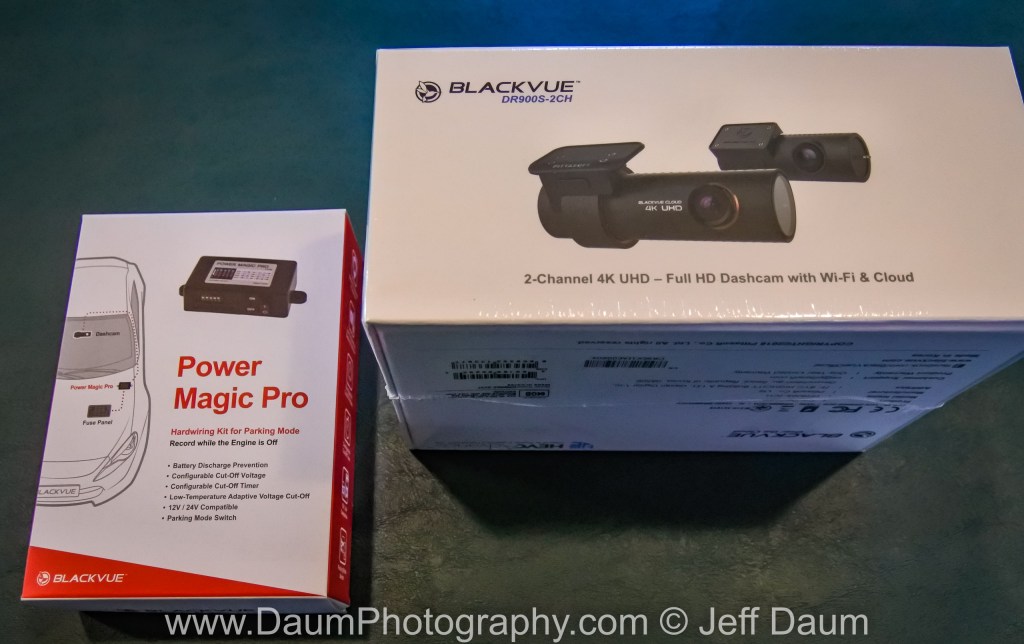
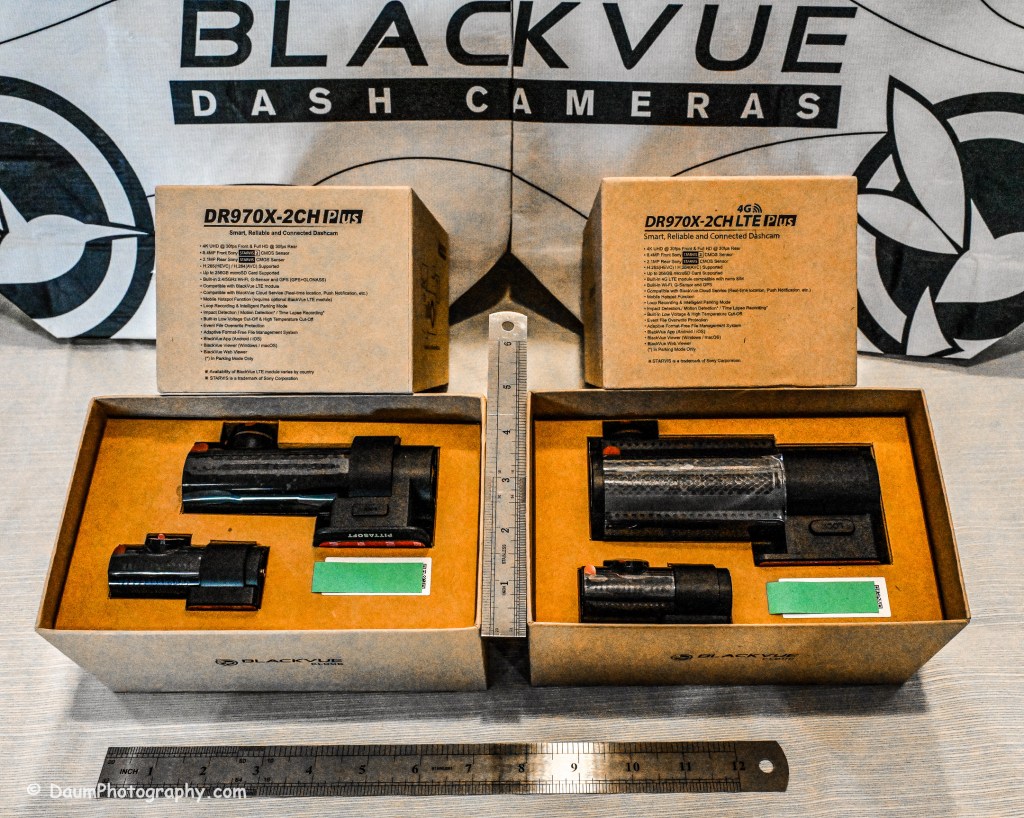
All come boxed with everything you need for either accessory plug powering or hard wire powering (both sets of power cords included), a starter BlackVue microSD card, connector line for linking and powering the rear camera, plastic trim pry tool, 3M adhesive for the cameras, small self-adhesive wire holders, Quick Start Guidebooks and a set of ‘nifty’ BlackVue stickers.  In my experience, the supplied power lines (hardwire or accessory, and rear camera) are more than adequate for proper setup in most vehicles.

Here is what the unboxing and components look like:
Preliminary Field-Testing Results

Though I will not cover permanent mounting in this review, it is fairly straightforward.  Running and tucking (hiding) the wiring needs some patience and varies from the OEM and type of your vehicle.  For an example you can check out my install in a BMW X3 here https://insight.daumphotography.com/2020/02/19/blackvue-dr900s-2ch-dash-cameras-install/ .   I will be doing a hardwire installation within a few months in a couple of different vehicles- a BMW i4 and a Chevrolet Corvette.  A link will be provided to that when available.  While these cameras all (the DR900S needs the optional Parking accessory wiring component) support automatic switch over to ‘Parking’ recording when hardwired, many vehicles today have battery management software built-in that will either cut the power to the dashcam or cut other non-essential power draws when the vehicle is turned off and the draw exceeds a certain level, to ensure the main battery has sufficient power remaining to start the engine.  You can buy optional battery packs to power a dashcam for a specified amount of time, typically from a few hours to a few days by piggybacking them per manufacturer’s directions.  BlackVue sells them for their cameras as do other organizations.  Currently these battery packs add considerable cost especially if you are looking for several days of parking coverage.  Beyond that, long term parking will require the auxiliary battery packs get recharged either by removing them to charge them or by a solar panel placed in the windshield if feasible.

The videos (MP4) can be viewed and/or downloaded through the excellent (and free) BlackVue app, or you can remove the microSD card and load the files onto your computer.  Again, BlackVue has an excellent app for either PCs or Apple (I will discuss it shortly).  For this review I removed the respective microSD cards and transferred the videos to my PC.  All video captures and still images presented here are not retouched or corrected and appear as recorded.  In some examples I have enlarged or cropped images for easier evaluation.

As I stated in my earlier dash camera review, for most dashcam users, the primary purpose is to document traffic as you are driving.  Dashcams have become popular as a means of providing evidence in the event of road rage and/or an accident.  Ideally the dashcam will capture clear, time and gps marked images, both during daytime and nighttime driving to aid in this objective.  To begin evaluating how well these BlackVue cameras achieve this, let’s first look at a short comparison between the DR970X Plus and the DR900S.

A couple of observations- both BlackVues do well in documenting what is happening. To my eye, the DR900S images are slightly sharper during the day than the DR970X, while the opposite is true of the nighttime images.  This is probably a result of the new STARVIS 2 CMOS Sensor in the DR970X.  I should mention that Pittasoft has indicated a firmware update is planned for the DR970X series, while I don’t know what it will fix, perhaps focus refinement will be part of it.

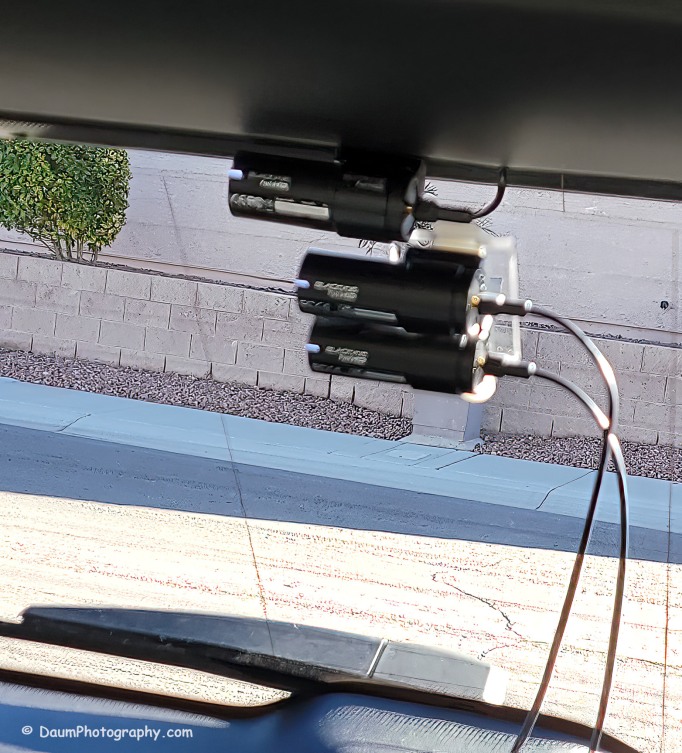
You might be wondering what is in the right side of the DR900S.  That is actually the bracket supporting the two DR970X cameras mounted below. Here is the set up I used:

Here are comparisons between the DR970X Plus and DR900S where you can see both the respective front and rear facing camera views, one day time and one nighttime set:

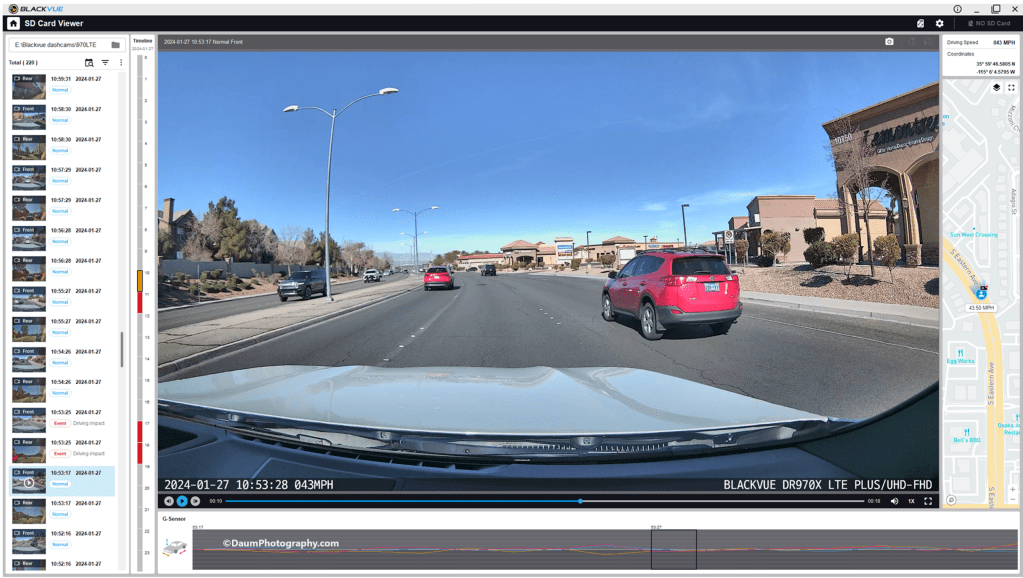
By the way, those simultaneous front and back views were generated using the free BlackVue PC app.  It is a very easy to use application that also can show each video along with a GPS location on a dynamic map, as well as a g sensor graph.  The g sensor shows any impact or bumps/rough road (which will also result in the video getting an “Impact” vs “Normal” label.  Here is what it looks like:
Here are some still images with the DR900S on the left and DR970X on the right:

Front camera

Rear camera

As with the videos, the greatest difference between the DR900S and DR970X is in the nighttime comparisons.  All images are viable straight from the respective cameras and could, if necessary, be sharpened with editing software.  One real advantage of the DR970X Plus series is that the WiFi is always on and that allows you to quickly view any saved or live images using the BlackVue app on your phone.  For the DR900S you have to turn on the WiFi at the front camera unit by pressing a button until it turns on (and it will automatically turn off in a few minutes).  Once turned on you can then link to the camera using the app.

Summary

As in prior comparisons, BlackVue continues to produce top line dashcams with the most important features built in.  Of course, quality does come at a price with the DR970X 2CH Plus including a 64GB microSD card retailing at US$474.99 and the DR970X LTE 2CH Plus including a 64GB microSD card, SIM card with a free trial of 1GB for one month retailing at US$544.99.  The BlackVue DR900S has been in my vehicle for four years now and has performed flawlessly in all temperatures from freezing to extreme desert heat. I have no reason to think the new DR970X Plus series won’t perform equally well. 

BlackVue states that you should use their microSD cards for optimal performance. I did experiment early on with several non-BlackVue microSD cards (all were name brand high-quality professional level cards, designed specifically for handling the frequent record events typical of security cameras designed for video recording), and while they would work for a period, inevitably they would stop working or have glitches.  Once I went back to BlackVue’s own card I never had it stop working or fail.

These cameras offer pricing plans for saving files to the cloud as well as in the case of the DR970X Plus LTE, a built-in SIM card to simplify the recording directly to the cloud.  As noted, it is easy to either download the video files or temporarily remove the microSD card and transfer the files to your computer.

The fit and finish of the new DR970X Plus is excellent (as was the DR900S) and all the included components are high quality.

If you are highly concerned about your vehicle when it is parked and unattended, you should consider purchasing optional battery packs to power the dashcam when the engine is off. One option is BlackVue’s Power Magic Battery Pack (US$159). It is designed for plugging into your accessory outlet and in turn your dashcam.  It provides about 12 hours of front camera recording or about 7.6 hours of front and rear camera recording.

A second option is to purchase Blackvue’s Power Magic Ultra Battery (US$389.99).  It is designed for either accessory plug or hardwire installation and then connection to your dashcam.  The Ultra unit is a high-capacity rechargeable unit that provides about 30 hours of record time for just the front camera, or about 19 hours record time with both front and back camera recording and can be piggy-backed to increase the total record time while parked.

Final thoughts:  Many of my readers have asked ‘Do you really need a dashcam, and if so which one?”  Hopefully this review is helpful in reaching a decision.  For me personally I always want to have documentation of what is going on around my vehicle when I am driving, so all my cars have dashcams and when I rent a car, I put in a portable dashcam before I leave the lot.  I also find it is nice to have videos of scenic drives and the ones from BlackVue are perfect for this.

Thanks for visiting and reading. If you have a question, please feel free to ask below! 
BLACKVUE DR900S-2CH dash cameras install

Background:

This is a step-by-step documentation of the BLACKVUE DR900S-2CH install on a 2019 BMW X3.  It will be followed by a review of the image quality and a comparison to other dash cams.  While this has some steps that are specific to the install in the BMW X3, in general, the process will be very similar for any vehicle application of the BLACKVUE™ DR900S-2CH system.  It also includes the install of the BLACKVUE™ Power Magic Pro, to allow for 24/7 coverage.

The BLACKVUE™ system was supplied to me by Pittasoft (distributers of the BLACKVUE™) for independent long-term evaluation.  Please note: This write-up is for information and explanation purposes; if you are going to install the BLACKVUE™ DR900S-2CH you are strongly encouraged to carefully review their installation guidelines and respective manuals.  All information and opinions expressed are my own and not that of Pittasoft.  I anticipate there are other ways to accomplish this install. If my steps aid you when you do your own, all the better.

The BLACKVUE DR900S-2CH is a high-end dash cam system that includes (all specs as provided by manufacturer):

  • Front 8-megapixel CMOS sensor camera and rear facing 2.1-megapixel Sony STARVIS CMOS sensor camera
  • Front viewing angle: diagonal 162º, horizontal 136º and vertical 77º
  • Rear viewing angle: diagonal 139º, horizontal 114º and vertical 59º
  • Resolution: max of 4k UHD (3840×2160) @30mfps front, Full HD (1920×1080) @ 30 fps rear
  • Video Codex H.265 (HEVC), H.264 (AVC)
  • MP4
  • Built in Wi-Fi and GPS
  • Built in microphone and speaker
  • 3-Axis acceleration sensor
  • Built in super capacitor
  • Operating temperatures -20ºC +70ºC / -4ºF to 158ºF

Additionally, there are free apps for the phone and computer.

If you want to record while driving (engine running), then after the install all you need to do is plug in the provided cord to your accessory outlet.  If you are also interested in recording any incidents while your vehicle is parked, you will need to add either the BLACKVUE™  Power Magic Battery Pack or the Power Magic Pro.  I decided to go with the hardwire Power Magic Pro, allowing the option of recording both while driving and while parked.

Most vehicles shut off the cabin accessory outlets either when the engine is turned off or within a preset time frame of 5 to 10 minutes after the engine is shut off.  Because of this, if you have your dash cam powered by plugging into the accessory outlet, it will stop recording shortly after the vehicle is shut down.  Conversely, if your vehicle has an accessory outlet that stays on even with the engine off (more common on older vehicles), if you have your dash cam plugged into the accessory outlet, it will continue to record even with the engine turned off.  The problem with doing it that way, while certainly simple, is that if you leave your vehicle parked for extended periods of time, the dash cam can eventually drain your battery and you won’t be able to start.

The BLACKVUE™  Power Magic Battery Pack or the Power Magic Pro gets around that problem by either relying on its on external battery (Power Magic Battery Pack)  or using its micro-processor (Power Magic Pro) to shut off the camera at a predetermined voltage level of your vehicle battery or a predetermined amount of time.

Install:

What you need-

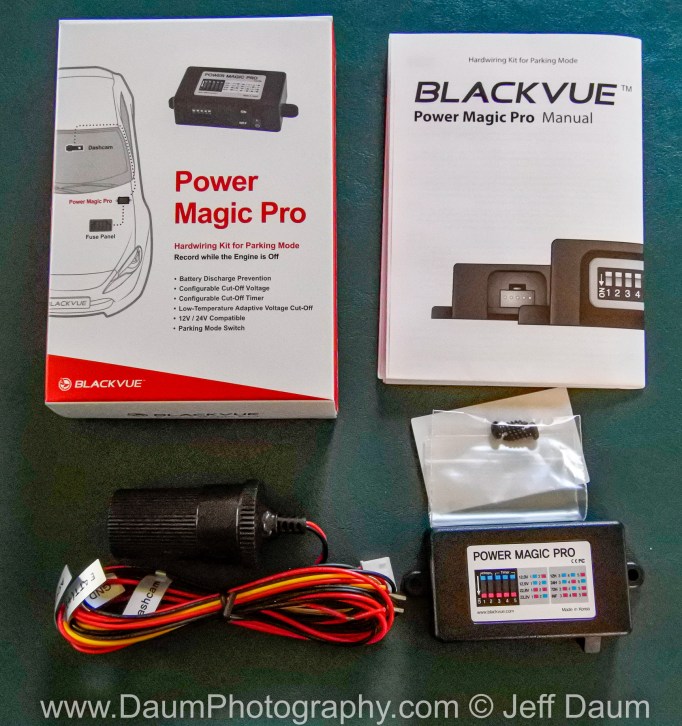
As can be seen from the accompanying images, the BLACKVUE™ DR900S-2CH and Power Magic Pro come with just about everything you need to do the install.

Basically, the only addition items you will need include a role of electrical tape, a microfiber towel and isopropyl (rubbing) alcohol (to clean the windshield before affixing the cameras with the supplied 3M tape), and if you are doing the hardwire install: the fuse layout of your vehicle, a fuse puller (or long needle nose plyers), and a pair of fuse taps adaptors (aka add-a-circuit) and appropriate fuses.

Installing the Power Magic Pro [Note: you skip this section if you are going to plug the BLACKVUE™ DR900S-2CH directly into your vehicle’s 12-volt accessory outlet]

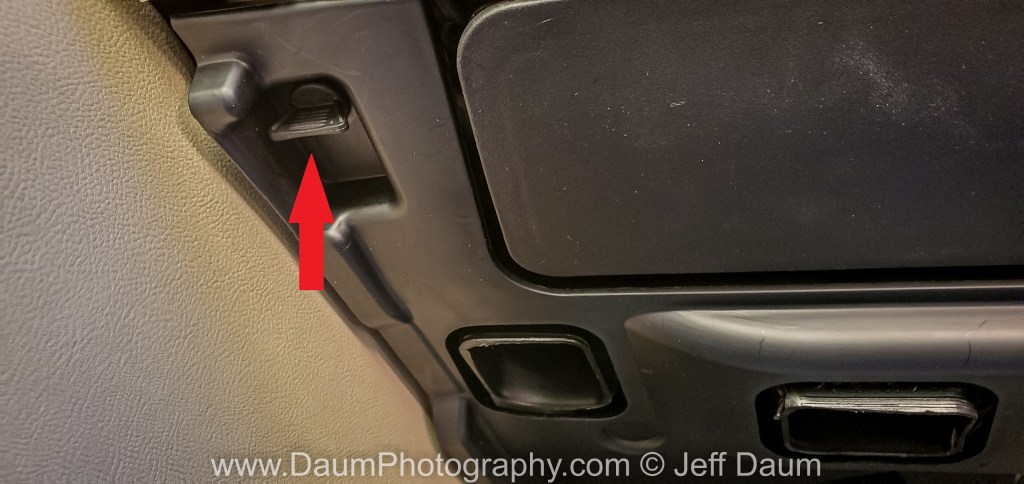
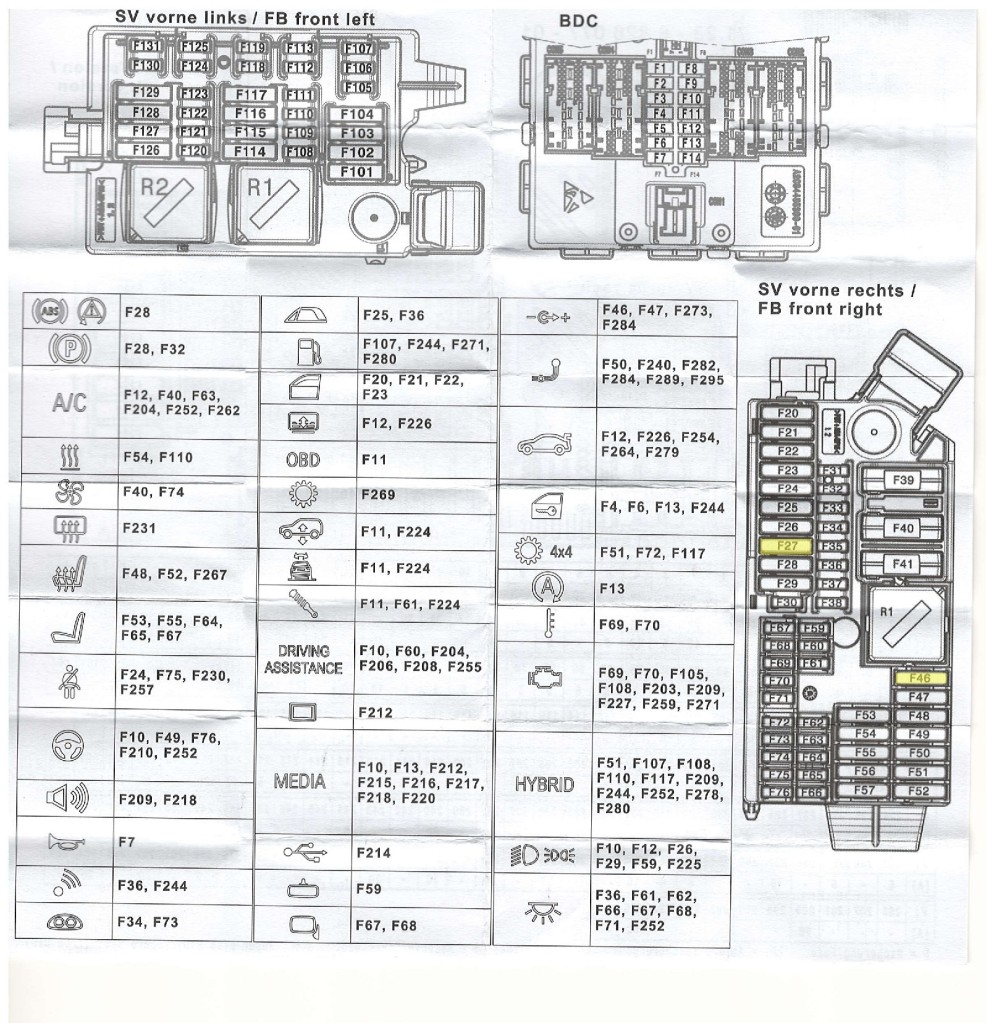
First step is to locate your nearest fuse block to the dash.  [Some vehicles have multiple fuse blocks.  If you don’t know where yours is located, first check your Owner Manual and/or search on the web for its location.]  Depending on your vehicle, the fuses are either labeled on the fuse block cover, or in your Manual.  In the case of the (US version) BMW X3, there are two fuse blocks inside the vehicle- one on the right (passenger side) interior rear behind a compartment door and behind sound insulation.  As it turns out, BMW doesn’t include a fuse diagram in the Manual, but rather has one printed on a sheet of paper that is folded up and placed in clips in this rear fuse block. It also contains the fuse puller.  The other fuse block is located in the front passenger seat foot well.  To get to it you first need to turn two plastic ‘locks’ in the cover located up under the glove box.  The cover actually contains the footwell light.  Here is what the lock on the left of the cover looks like:

Here is what the cover looks like once you release and remove it.

In this picture you see 3 red arrows- you will need to uncouple the power to the cover light, and pop out the 2 cord holders so that you can get the cover out of the way as you access the fuse block.

Here is what the BMW X3 fuse block and labels looks like.  Note, the diagram reflects what you are seeing if you were lying on your back, feet toward the engine, and looking up at the fuse block.

You are going to want to use fuse taps adaptors on slot F27, constant power, and slot F46, accessory power (only on when the engine is on).  If you are installing on another vehicle, you similarly need to identify a fuse slot that has constant power and one that is powered only when the engine is running.  If you haven’t used the add-a-circuit tap before, it is really easy to do.  It is much better, in my opinion, than wrapping the wire you want to power around the existing fuse.  You simply pull the fuse from the existing slot (using a fuse puller or needle nose plyers), insert the fuse you pull into the fuse tap ‘front’ slot (the one that does not have the new wire coming from it), and add a new fuse for your dash cam to the other slot (the one that does have a wire next to it.  By using this add-a-circuit fuse tap, you maintain the exact same circuit integrity for the original slot and application, and your new circuit is protected by the new fuse you put in.  Then you simply push the add-a-circuit fuse tap back firmly into the same slot you pulled the fuse from.

Most add-a-circuit fuse taps include a crimp or crush connector to wire your dash cam line to.  I prefer to cut that off and solder the two lines together, finishing with heat shrink tube around the solder joint.  This results in a permanent connect between the two lines; sometimes crimped connections do not fully capture the second wire, and ultimately fail due to vibration.

Here is what the add-a-circuit fuse taps look like added to the X3 fuse block.

In this case, I used slot F46 for the accessory tap (power only when the engine is running) and the empty slot F27 for the constant power tap.  If you look closely at the picture, you will see that the one I have labelled ACC has two fuses in the tap- the original fuse from F46 and the new fuse for the dash cam.  The tap in F27 only has one fuse inserted for the dash cam, since the slot F27 was empty.  At this point you also will attach the ground line from the dash cam Power Magic Pro wiring harness, to a grounded nut.  There is one just above the fuse block that I used.  Back off the nut and slip the metal connector from the Power Magic Pro black line under the nut while retightening it.

At this point I suggest verifying that your connections work as intended.  I use a volt meter and first checked the tap at F27 to confirm power with the engine off.  Then I checked the F46 connection to ensure no power with the engine off, and power when the engine is on.  It also makes sense to check that your ground connect in fact is grounded.

Next you set you desired low voltage cut and time setting on the Power Magic Pro by moving the respective switch ‘fingers’ on the unit.  Initially I set the low voltage cut to 12.5 volts and the time setting to Infinity.  As it turns out, the 12.5 volt was too high for the BMW, which apparently has a normal non-running voltage of slightly less than 12.5 volts.  So, I changed it to 12 volts and it works perfectly.

Installing the front and rear dash cams

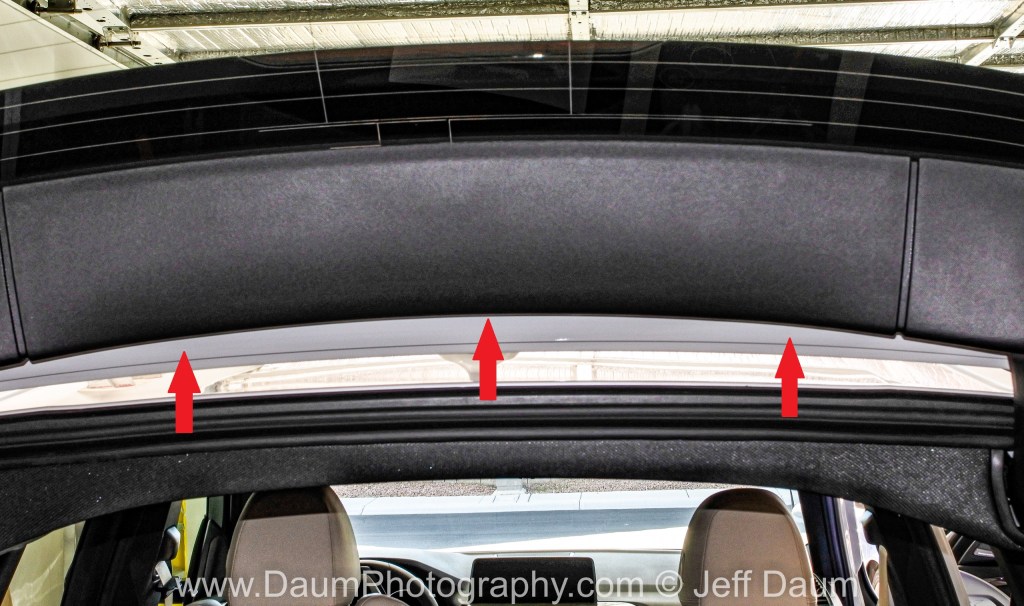
I started with the rear dash cam, since in the BMW X3, it required the removal of some trim pieces and a bit more finesse in routing the wiring, than does the front dash cam.  To begin with, you need to remove the center trim piece that runs across the back inside of the rear trunk door.

This trim piece comes off using a plastic trim ‘pry’ tool (one is supplied with the BLACKVUE™ system), but I have several around.  Carefully insert the plastic pry tool between the trim and body, and then use your fingers to gently pull the trim from the body as the plastic attachments release.

You will also need to remove the trim piece on the right side to give you easier access to the back side of the hinge, where you will be feeding the wire through.

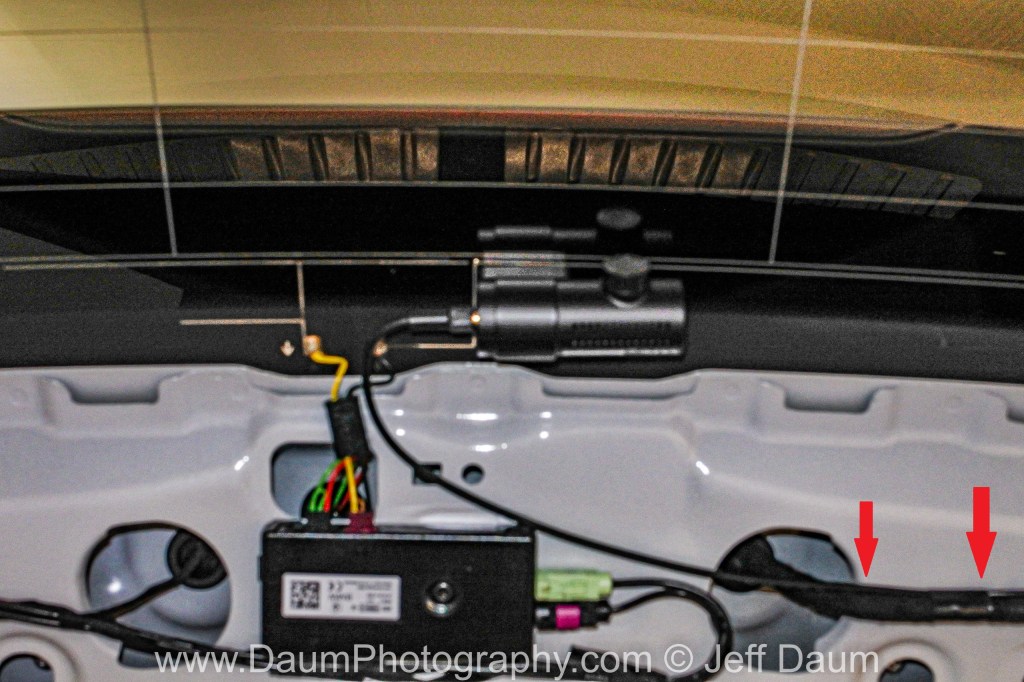
Decide where you are going to mount the rear camera.  Close to the center top of the window will work perfectly.  Clean the window with the isopropyl alcohol and microfiber towel to ensure good adhesion of the 3M pad already attached to the rear camera mount.  Note the camera direction before you mount it- when you are facing the camera and your vehicle from the back looking towards the front, the mount goes on your left-hand side and lens on the right-hand side, with the cord plugging in from the left side.  You can see this here:

Start to route the cable horizontally across the rear window, following the existing power cable, as shown by the two red arrows in the above picture.

I recommend using several small pieces of electrical tape to secure the dash cam cable to the existing cable.  Next you will be sliding the cable down the back side of the hinge (where there are already cables running).  To be on the safe side, I recommend using electrical tape and making a protective wrap for about a foot along the dash cam cable, where it will be going down the backside of the hinge.  If possible, secure the dash cam cable to the plastic sleeve in the inside channel of the hinge. Next, fish the cable out between the liner and the hinge and begin to use the plastic pry tool to ease the cable to the right front of the vehicle.  You’ll find that you can use the pry tool to spread the opening between any hard-plastic liners and ease the cable into that opening, and along the roof line where there is rubber weather stripping into which you can easily slip the cable.  Use this technique to bring the cable up to the right edge of the front windshield.

Next, install the front camera.  Again, you want to get reasonably close to the center top of the windshield.  Since the BMW X3 already has the actual center taken up with its monitors and cameras, I choose a location slightly to the right.  Remember, you need to leave room for the camera to slide out of its mounting bracket, and that can only be done to the left of the bracket (facing the windshield from the interior).  Again, be sure to clean the windshield with the isopropyl alcohol and microfiber towel to ensure good adhesion of the 3M pad already attached to the front camera mount.

Once you have attached the mount for the front camera, you will need to run the cable from the rear camera to it from where you stopped at the right side of the windshield, and the power cable that attaches to the front camera.  It is very easy to push these two cables up under the header at the top of the windshield.  Remember to leave enough line of the cables exposed near the front camera, so that you can comfortably attach them to the camera when you are ready.

Next bring the power cable down from the windshield down along the weather stripping between the door frame and body, down towards the fuse block.  Also, if you have excess cable from the rear camera, you can easily bring that down at the same time as the power cable.

Continue to bring the power cable down to the fuse block area.  [If you are not going to use the Power Magic Battery Pack or the Power Magic Pro, continue to tuck the power cord up behind the area above the carpeting in the passenger foot well and bring it to your center compartment accessory outlet.]  Now attach the wiring harness that you connected via the add-a-circuit fuse taps and grounded to a grounding nut, to the Power Magic Pro.  Connect the accessory plug to the Power Magic Pro receptacle.  I suggest you use some electric tape to wrap and secure the plugged accessory connection.

Next, tidy up your excess cable and place it in the area behind or above the footwell carpeting.  Also, place your Power Magic Pro where you would like it.  As you can see, I placed it in the same general area, since I don’t anticipate I will be needing to turn the unit off.

At this point, your Power Magic Pro should show power on (LED lit) and your front and back dash cams should be powered up.  Be sure to remember to remove the plastic lens cover from both the front and rear camera lens.  If everything is working, now go and replace the trim pieces on the back window.  Reconnect the power cable to the passenger footwell cover and then slide that back on, engaging the catches on the frame with the back right and left of the cover.  Relock the plastic locks.

Now you are ready to download the BLACKVUE™ app for your phone and app for your PC or iPad.  Though these you can adjust the respective setting, ensure your software is up to date, etc.

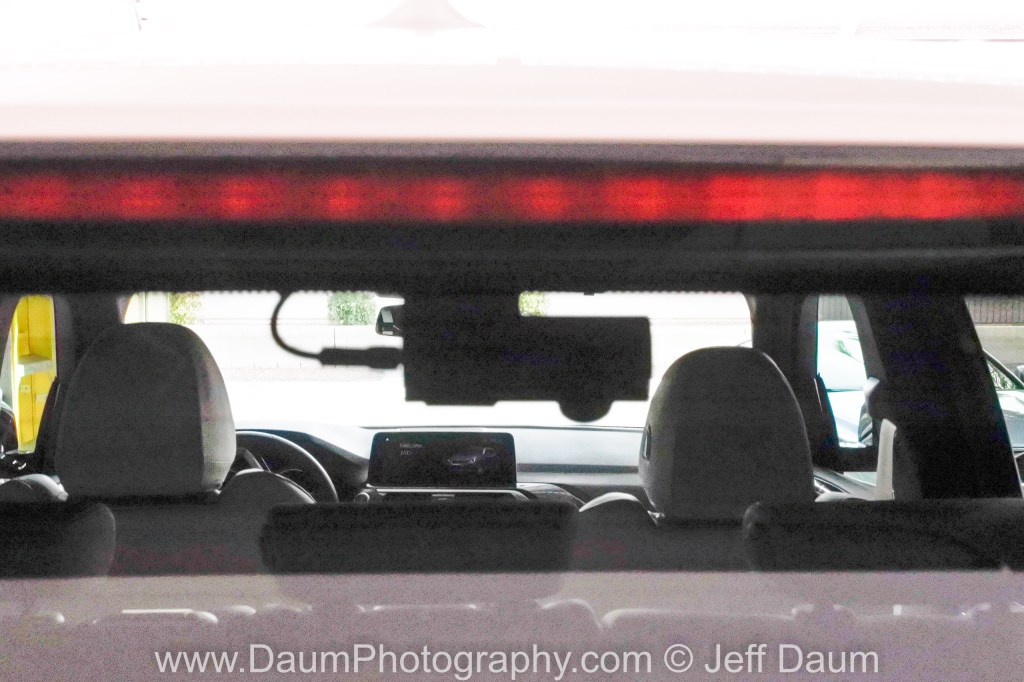
Here is what the rear camera looks like from outside the vehicle

And what the front camera looks like looking into the windshield

Finally, here is a view from the driver seat showing the rear-view camera visible in the rearview mirror (red circle), and the front camera to the right of the mirror.

Note: Once I got the Power Magic Pro functioning properly, I ran into an unexpected issue.  The CPU battery management software on the BMW is designed to detect unknown power draws once the vehicle is parked.  As a result, while it (the BMW) allowed the Power Magic Pro to fully power the dash cams in ‘parking mode,’ it twice documented electrical problems and to preserve the battery, began to shut down non-essential functions in its control (like remote key FOB control) after about 24 hours of the BlackVue power draw.  This means that even though the Power Magic Pro enables the BlackVue DR900S- 2 ch system to operate in parking mode correctly, it is incompatible with the BMW because of the continuous power draw for parked periods of several days or more.  This unfortunately defeats the purpose/value of using the Power Magic Pro for anything other than shorter parked periods.

Update: As I discussed in my install write-up, the Magic Pro is basically incompatible with our BMWs because of the ‘unknown’ power drain. Until I find a viable independent power source solution that could power the BlackVue dual cameras in parking mode for periods of a week or more, I decided to hard wire the BlackVue system to one of the accessory circuits.

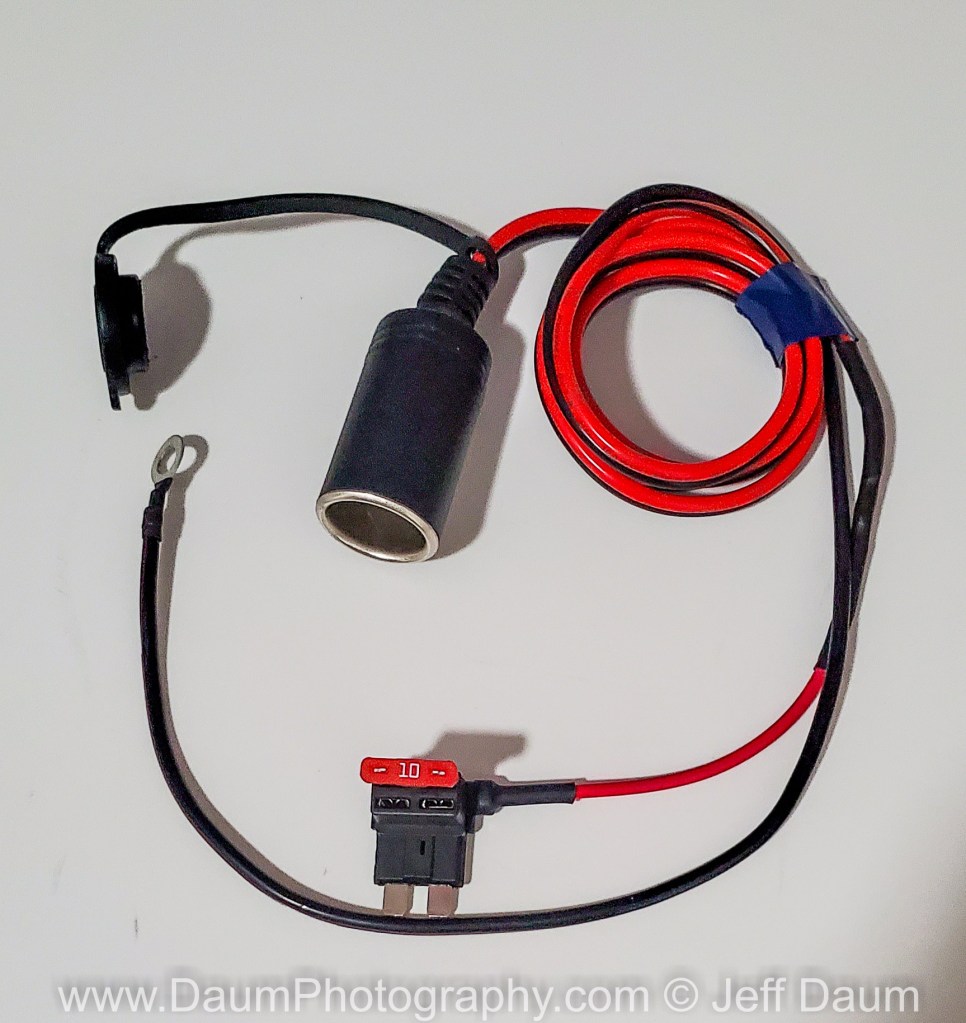
I chose to use an add-a-circuit fuse tap to F46 in the fuse block (accessory). I purchased a female cigarette lighter outlet (accessory outlet) which came with 16awg wires, one terminating in a grounding eyelet, and one in a fused power line. I cut off the end of the fused power line, and soldered it to the hot-line on the add-a-circuit fuse tap, and then heat shrink sealed the solder joint. I connected the ground eyelet to the existing stud and nut near the fuse block (removed the nut, put the eyelet on, reinstalled the nut).

Then I connected the accessory plug from the BlackVue cameras to the new accessory outlet and used electrical tape to ensure the plug remained properly connected. Finally I placed the excess wire up by the top of the passenger foot-well near the fuse block.

Now the BlackVue front and rear dash cams start recording as soon as the engine is turned on, and stops after the engine is turned off and the power to the accessory circuit is cut.

I hope this write-up makes your install go smoothly.  I will add a link in the near future to my review of the image quality of the BLACKVUE™ along with comparison to other dash cams.