You’ve been captured! Reolink Elite 4K Floodlight WiFi surveillance camera review

By Jeff Daum, Ph.D., PPA

Technology & Product Analyst

In a word, this Reolink Elite Floodlight WiFi surveillance camera is truly impressive.  Reolink raises the bar for surveillance systems on multiple levels including image quality, ease and flexibility of use and AI-assisted search of recorded videos.  This unit was provided to me by CommunicateMore for testing and review.

Here are the Reolink Elite Floodlight WiFi specifications listed on their website*:

  • Image Sensor 1/2.7″ CMOS  Sensors
  • Resolution 5120×1552(8 Megapixels) @20fps
  • Lens f=2.8mm fixed, F=1.6
  • Field of View Horizontal: 180° Vertical: 59°
  • Infrared Night Vision Up to 30 meters (100ft); LED: 9pcs/850nm
  • (Auto-switching with IR-cut filter)
  • Color Night Vision With Floodlights: 19W 3000 Lumens/3000K~6000K
  • Frame Rate Main stream: 2fps – 20fps(Default: 20fps)
  • Sub stream: 4fps – 20fps(Default: 20fps)
  • Code Rate Main stream: 3072Kbps -8192Kbps(Default: 5120Kbps)
  • Sub stream: 256Kbps – 2048Kbps(Default: 1024Kbps)
  • Audio Two-way audio
  • Tailorable real-time mobile notification options of email, text or both.
  • Unit cost: US$219.99 list

The unit ships with just about everything you need to mount the surveillance camera and get it up and operational.  Included is the camera unit with dual cameras and two LED floodlights, hardware to mount it on the wall or overhang, and a brief manual.  Additionally, each package of the different screws needed are clearly labeled and match the labeling in the brief manual.
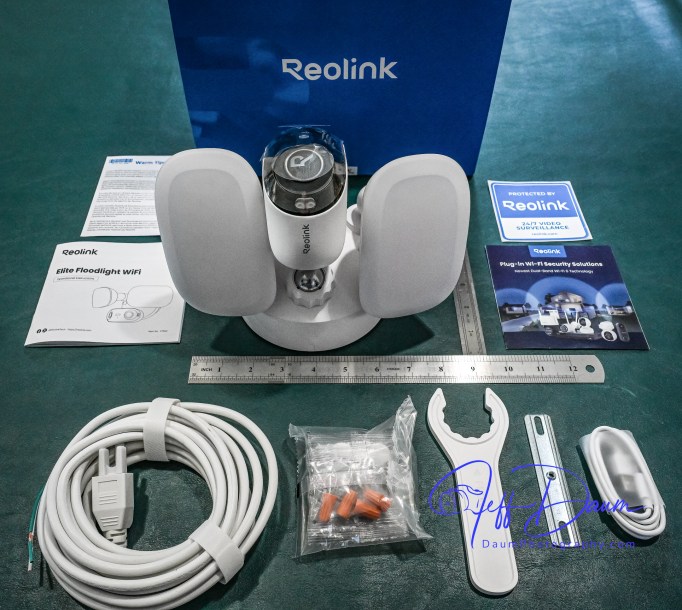
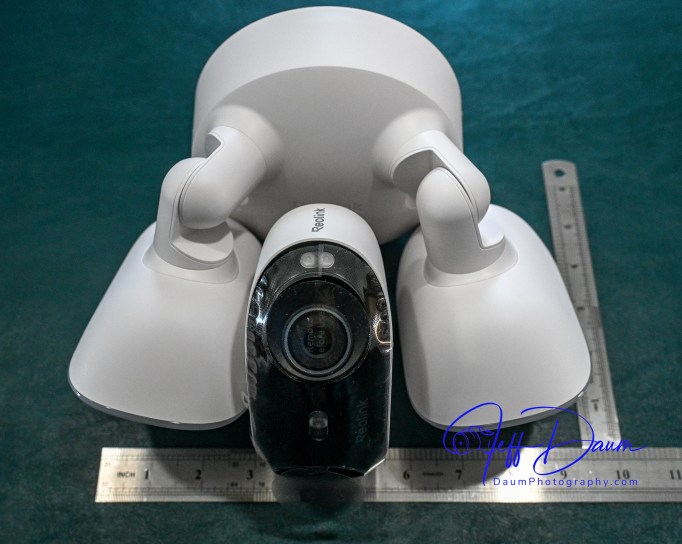
Before you mount the unit you need to use your smart phone to download their free app which then guides you through the initialization of the camera and linking it to your WiFi.  At this stage you temporarily power the camera with the supplied USB A to C cord.  However, you will need to provide your own 5-volt 2-amp USB power adaptor (standard with most phones in the past).  Access the USB port on the camera body by removing two Phillips head screws in the port cover (the screws are ‘captured’ so you don’t have to be concerned about losing them).

This initialization process will go smoothly if you make sure you do a couple of necessary things:

  • Ensure you set up the permissions for the Reolink app to access your camera, its Bluetooth, precise location, etc.
  • Notice the little check box on your phone as it is stepping you through the process that says ‘you heard the voice prompt’ from the unit.

Once you get the initialization set up, you disconnect the USB cord.  If you are going to use the unit’s internal storage, you will need to install a micro-SD card at this point.  It supports up to a 512GB microSD card with FAT32 format and Class 10 read and write speed. You will find the microSD slot near the same area that you inserted the USB cord.

You don’t have to use internal storage, but I recommend it even if only as a backup.  Reolink offers the option of storing recorded videos to the microSD card, your own NAS or their NVR unit.

Next you screw the port cover back on and are ready to mount the unit.  Since it is powered by AC 100V~240V, 50~60Hz you will need to have a junction box available where you plan on placing it or run power and a new box to the location.  Wiring is straight forward, just the hot, neutral and ground connections.  The mounting bracket Reolink supplies has a level built into it that makes it easy to correctly align the three screw holes as you mount it to the wall.

The camera and floodlights unit then screws on the mounting bracket.  Note: There is a small loop incorporated into the back of the camera unit that allows you to temporarily support/hang it while you connect the three wires with the supplied wire nuts.
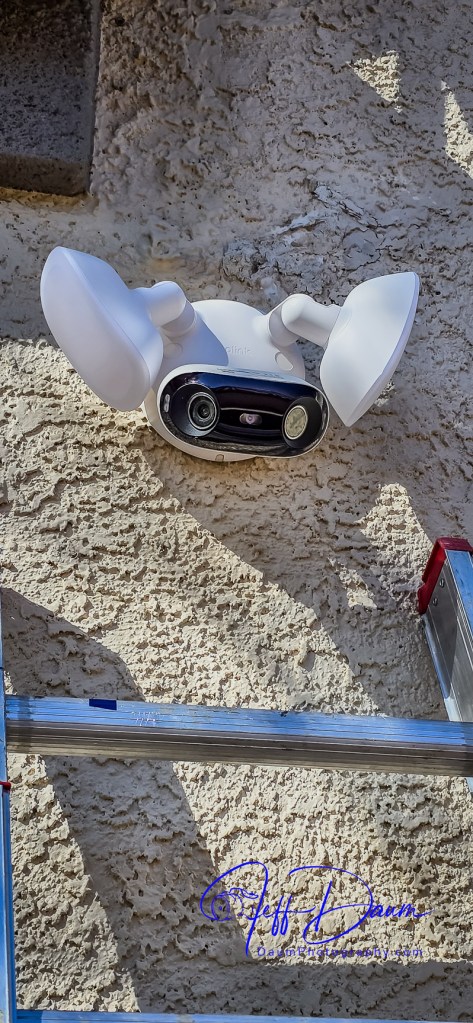
Once you have the unit mounted and have placed the supplied hole plugs over the screws, you are ready to turn on the power to the camera.

In my case the unit came online in the app on my phone almost immediately.  Next, using the live stream in their app, you position the camera head to deliver the best coverage.  They provide a plastic wrench to tighten the camera support once you have it positioned.

Keep your ladder handy if you mount your unit high on a wall, since you will need to wait until it is dark to position the two floodlights best for your situation.

Reolink’s smart phone app is very easy to use and well designed.  It opens to a live stream of the camera’s 180 view.  The app is intuitive with icons to trigger the 105dB siren, floodlights, two-way audio, snap a picture or start a recording, talk over its built-in speaker, playback recorded events and access your settings.

They also have free versions of the app available for use on a PC or Mac that are equally easy to use.

The key function that sets Reolink’s app and this Elite 4K Floodlight WiFi surveillance camera apart from competition is the ease you can review recorded videos.  Instead of having to wade through potentially hours of video to find what you are looking for Reolink uses AI to do it for you!

When you click on Playback on the phone, it loads the videos by date and then there is an icon that allows you to sort/search by event type.  For example, you can choose to see all videos where a person entered the field of view, or a vehicle, or animal or combination of these.  When you select one or more of these filters, it then quickly sorts through the videos and brings up only those matching your selection.  If you used the settings function to define a specific line or zone in the viewing area, you could also select to see videos where someone has crossed the line or entered the zone.  It can even identify and sort when someone is loitering in the viewing area.

When you are looking at saved videos, the app allows you to play the video at normal speed or as slow as ¼ speed or in increments up to 16xs speed.  As mentioned, you can at any point snap a picture of what you are viewing, and/or download the current video.

The Reolink apps on PC or Mac are very similar to the smart phone app in functionality and ease of use.

I found this AI assisted search to be excellent and correct most of the time.  It really saves so much time and effort searching through recordings to find an event.

This brings me to the quality of the image.  Whether you are looking at the live feed or the recorded image, it is outstanding in both day and night versions.  The image is sharp, the color excellent during the day and very good at night even with the floodlights set to lower lumen output (I did set the color temperature to 6000K and reduced the lumens to about half power).

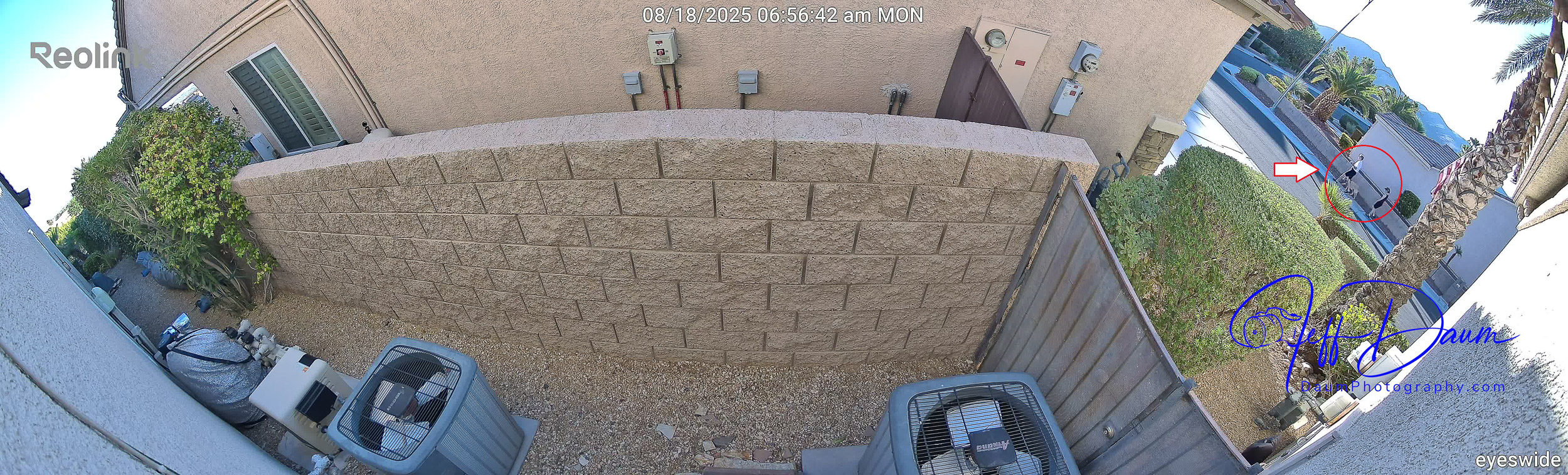
Here are some samples of daytime images and nighttime images directly from the live stream.  The detail holds up even if you considerably enlarge (crop) an image. Note, these are uncorrected images directly from the Reolink unit. Because of the native quality, they could if necessary be easily enhanced using post production editing.

These are day and night images:

These sets show enlargements of the red circled area in the first image:
Similarly, the videos are smooth and images crisp. For a short day clip see https://youtu.be/L3aVJGOvWz0

and for a short night clip see https://youtu.be/Z7__wVtNgxs

You can see in these samples that the Reolink software automatically stitches the simultaneous images from the two cameras in the unit together to provide a panoramic picture.

In my set up because I have the unit both mounted high and pointed downward so I can see both ends of the side yard as well as wall of my house, you do end up getting normal curvature distortion from the center of the image to both sides.  This is mild and does not impact the sharpness of the image.  If you end up mounting the unit lower or don’t need to point it downward as much, you will have little to no curvature distortion.

The type of recording you want to save is set in options, along with where you want to store them.  For this review I went with a 512GB MicroSD card and allowed it to save recordings of all forms of activity.  It appears that it will store approximately a month’s worth of recordings on my setting before recording over the oldest files.

The Reolink Elite 4K Floodlight WiFi surveillance camera and its free apps do not disappoint.  The high quality180 degree view along with the AI search set this system apart from competition.  It is easy to tailor it for your specific needs and is value-priced considering everything it delivers.

It receives five out of five thumbs up!

*Reolink website https://reolink.com/us/

Thanks for visiting and reading. If you have a question or like to comment, please feel free to enter it below!
BlackVue DR970X-2CH Plus and DR970X-2CH LTE Plus Dash Cameras Field Test

By Jeff Daum, Ph.D., PPA

The focus (yes, literally and figuratively 😊 ) of this review is a comparison of two new BlackVue dash cameras, DR970X-2CH Plus and DR970X-2CH LTE Plus, to my current benchmark, the BlackVue DR900S-2CH camera unit.  I reviewed the DR900S in 2020 and found it to be an excellent choice out of the already crowded field of dashcams.  You can see my review here https://insight.daumphotography.com/2020/07/11/product-review-blackvue-dr900s-2ch-field-test/ .  The new DR970X Plus units were provided to me by the Marketing Team of Pittasoft Company, who manufactures the BlackVue units in their own factory in Korea.

Technically speaking based on BlackVue press releases, the DR970X Plus appears to have several improvements over the DR900S including a faster processor chip, improved CMOS sensors, and in the case of the DR970X-2CH LTE Plus, built in SIM card capability.   Top of my interest in carrying out this comparison and review is the DR970X Plus noticeably better in actual day-to-day use?

Before jumping into the field results, here are some of the respective technical specifications.

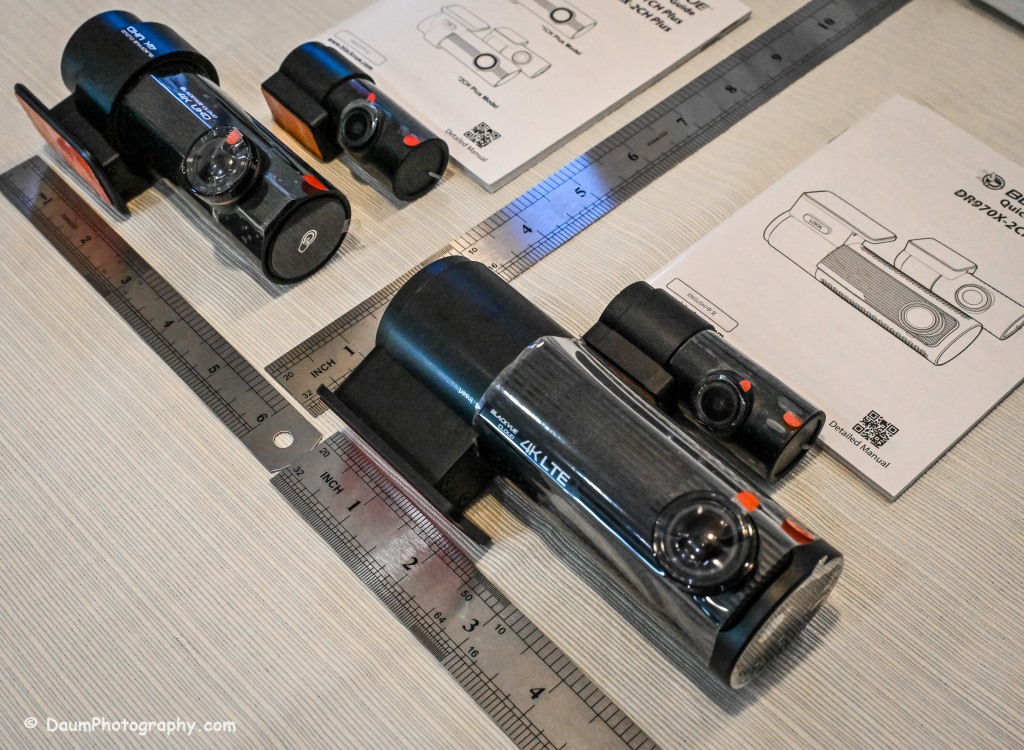
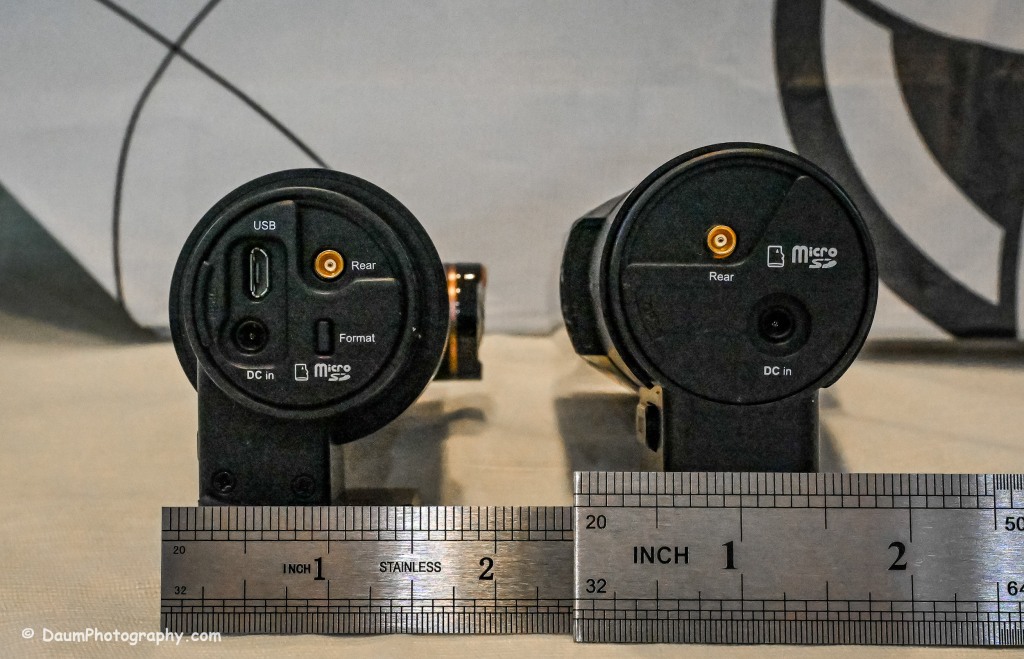
Physical dimensions:

The DR970X-2CH Plus and DR970X-2CH LTE Plus have identical core components, that is, the lens, sensor, chips, etc., with the exception that the DR970X-2CH LTE Plus has a built-in LTE SIM micro card receiver and related circuitry.  This results in the DR970X-2CH LTE Plus being a little larger and slightly heavier than the sister unit.

DR970X-2CH LTE Plus vs DR970X-2CH Plus vs DR900S:

  -Weight with mount: 6.8 oz (192.7g) vs 5 oz (141.7g) vs 4 oz (113.39g)

  -Dimension: 5.42in (137.6mm) L x 2.67in (60.3mm) W x 1.69in (43mm) H vs 4.67in (118.6mm) L x 1.86in (47.7mm) W x 1.4 (36mm) H vs 4.66in (118.5mm) L x 1.4in (36mm) H

The rear camera is essentially physically the same on all three models: 2.6in (66mm) L x 1.1in (27.94mm) D and 1.0 oz (28.35g)

The DR970X Plus and the DR900S are almost the same physical size and weight, with the DR970X-2CH LTE being almost 2 ounces (56g) heavier as well as somewhat longer and rounder than the other two.

The lenses:

The DR970X-2CH Plus cameras (remember, both units are identical with respect to cameras and image capture) have a 125-degree horizontal and 68-degree vertical lens in the front unit, with a 107-degree horizontal and 55-degree vertical viewing angle in the back camera.  The DR900S-2CH camera has a slightly wider capture with a 136-degree horizontal and 77-degree vertical lens in the front unit, with a 116-degree horizontal and 61-degree vertical viewing angle in the back camera.

The resolutions and frame rates are identical for all three units at their highest settings: 3840×2160 @ 30 fps.

Image quality for the DR970X-2CH Plus units is 60+10 Mbps at the highest setting vs the DR900S is 25+10 Mbps, and all three have the same 8+6 Mbps with quality set to Normal.

Compression Codec is the same on all three units: H.265 (HEVC), H.264 (AVC)

Additional technology:

The DR970X-2CH Plus cameras use a STARVIS 2 CMOS Sensor of approximately 8.4 Megapixels on the front camera and a STARVIS CMOS Sensor or approximately 2.1 Megapixels on the rear camera, while the DR900S uses an 8-Megapixel CMOS Sensor on the front camera, and a Sony STARVIS CMOS Sensor of approximate 2 Megapixels on the rear camera.

All three cameras record in 4k UHD front and full HD rear.

All three camera units have built-in GPS but the DR970X Plus has dual band GPS, GLONASS.  They also have built-in WiFi with the DR900 supporting 802.11 2.4 GHz and 802.11 ac 5GHz dual band while the DR970X supports 802.11 a.b.g.n.ac.

All three record automatically when powered up and automatically over-write Normal recordings when the microSD card is full.  They also record and preserve impact detection events that occur while driving and while in parking mode (if powered).  Manual recording is also preserved.  They can take microSD cards from 16GB to 256GB (but strongly recommend only using BlackVue cards- more on this later).  Power is retained for a short period after shut down via built-in Super Capacitors.

All three cameras have a built-in microphone and speaker. One or both can be turned off via the BlackVue app.

All three camera units offer video recording saving to the cloud using optional paid plans, and the DR970X-2CH LTE Plus includes a free one-month trial SIM card and optional paid plans.  However, you don’t have to use the cloud and can either view your saved videos or live images by means of the free BlackVue phone app.  You can also download to your phone or remove the microSD card and transfer the files.  More on this shortly.

Power consumption per hour (really only important if you are using a dashcam in Parking Mode with the engine turned off) as expected, highest for the DR970X-2CH LTE being 590mA/12V in Normal Mode, 430mA/12V in Parking Mode vs the DR970X-2CH Plus at 480mA/12V Normal Mode, 370mA/12V Parking Mode vs the DR900S 380mA/12V in Normal Mode (Parking Mode was not part of the DR900S, so no equivalent power consumption available)

Recorded file size:  The typical DR970X Plus series front camera file size per recording (each is 1 minute in length) is 443 MB and for the rear camera 79.7 MB, while the DR900S file size per recording (1 minute in length) is 188 MB and for the rear camera 81.1 MB.  So, the DR970X Plus files for the front camera are more than 2.3 times larger than the DR900S, while the rear camera files are close in size.  This means that your microSD card is going to hold less than half the videos before it starts over writing as compared to the DR900S.

All come boxed with everything you need for either accessory plug powering or hard wire powering (both sets of power cords included), a starter BlackVue microSD card, connector line for linking and powering the rear camera, plastic trim pry tool, 3M adhesive for the cameras, small self-adhesive wire holders, Quick Start Guidebooks and a set of ‘nifty’ BlackVue stickers.  In my experience, the supplied power lines (hardwire or accessory, and rear camera) are more than adequate for proper setup in most vehicles.

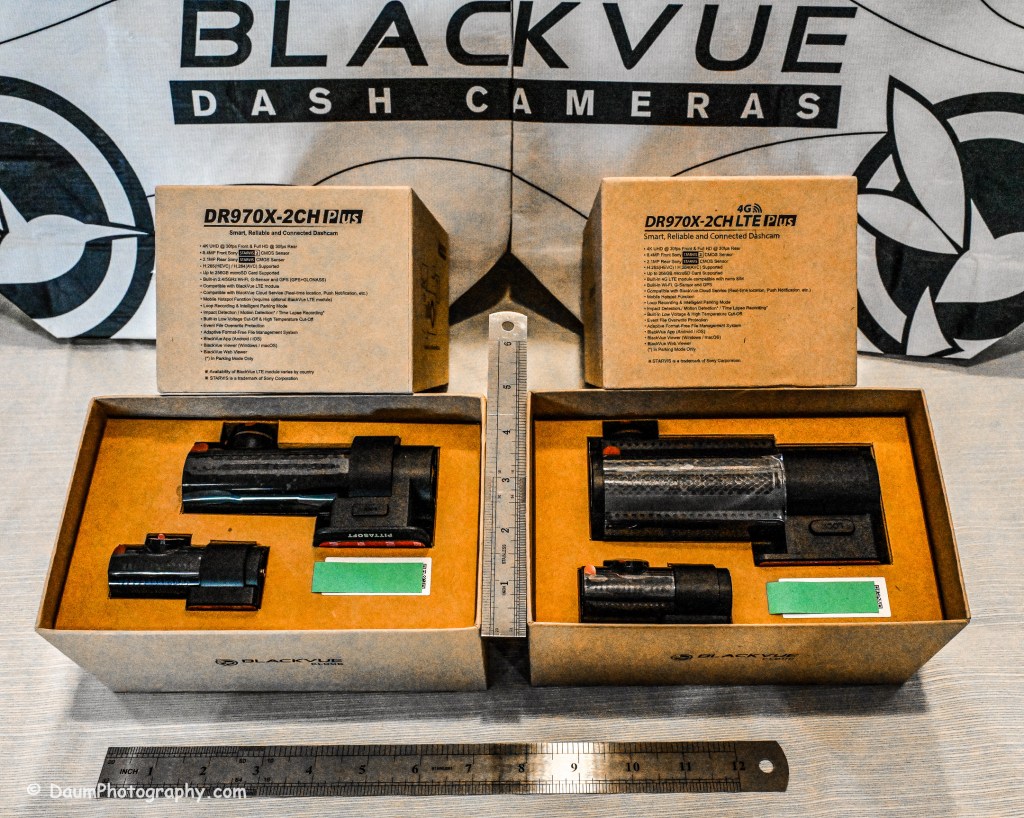
Here is what the unboxing and components look like:

Preliminary Field-Testing Results

Though I will not cover permanent mounting in this review, it is fairly straightforward.  Running and tucking (hiding) the wiring needs some patience and varies from the OEM and type of your vehicle.  For an example you can check out my install in a BMW X3 here https://insight.daumphotography.com/2020/02/19/blackvue-dr900s-2ch-dash-cameras-install/ .   I will be doing a hardwire installation within a few months in a couple of different vehicles- a BMW i4 and a Chevrolet Corvette.  A link will be provided to that when available.  While these cameras all (the DR900S needs the optional Parking accessory wiring component) support automatic switch over to ‘Parking’ recording when hardwired, many vehicles today have battery management software built-in that will either cut the power to the dashcam or cut other non-essential power draws when the vehicle is turned off and the draw exceeds a certain level, to ensure the main battery has sufficient power remaining to start the engine.  You can buy optional battery packs to power a dashcam for a specified amount of time, typically from a few hours to a few days by piggybacking them per manufacturer’s directions.  BlackVue sells them for their cameras as do other organizations.  Currently these battery packs add considerable cost especially if you are looking for several days of parking coverage.  Beyond that, long term parking will require the auxiliary battery packs get recharged either by removing them to charge them or by a solar panel placed in the windshield if feasible.

The videos (MP4) can be viewed and/or downloaded through the excellent (and free) BlackVue app, or you can remove the microSD card and load the files onto your computer.  Again, BlackVue has an excellent app for either PCs or Apple (I will discuss it shortly).  For this review I removed the respective microSD cards and transferred the videos to my PC.  All video captures and still images presented here are not retouched or corrected and appear as recorded.  In some examples I have enlarged or cropped images for easier evaluation.

As I stated in my earlier dash camera review, for most dashcam users, the primary purpose is to document traffic as you are driving.  Dashcams have become popular as a means of providing evidence in the event of road rage and/or an accident.  Ideally the dashcam will capture clear, time and gps marked images, both during daytime and nighttime driving to aid in this objective.  To begin evaluating how well these BlackVue cameras achieve this, let’s first look at a short comparison between the DR970X Plus and the DR900S.

A couple of observations- both BlackVues do well in documenting what is happening. To my eye, the DR900S images are slightly sharper during the day than the DR970X, while the opposite is true of the nighttime images.  This is probably a result of the new STARVIS 2 CMOS Sensor in the DR970X.  I should mention that Pittasoft has indicated a firmware update is planned for the DR970X series, while I don’t know what it will fix, perhaps focus refinement will be part of it.

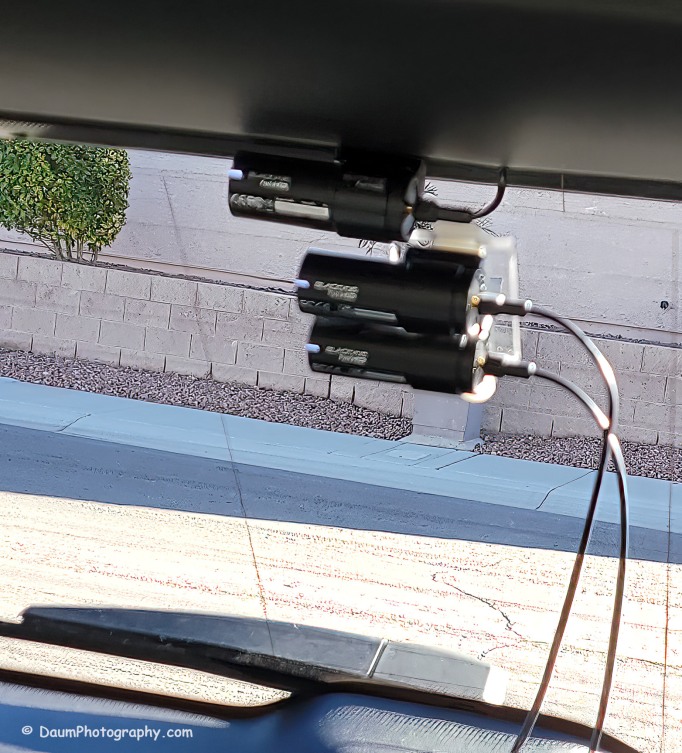
You might be wondering what is in the right side of the DR900S.  That is actually the bracket supporting the two DR970X cameras mounted below. Here is the set up I used:

Here are comparisons between the DR970X Plus and DR900S where you can see both the respective front and rear facing camera views, one day time and one nighttime set:

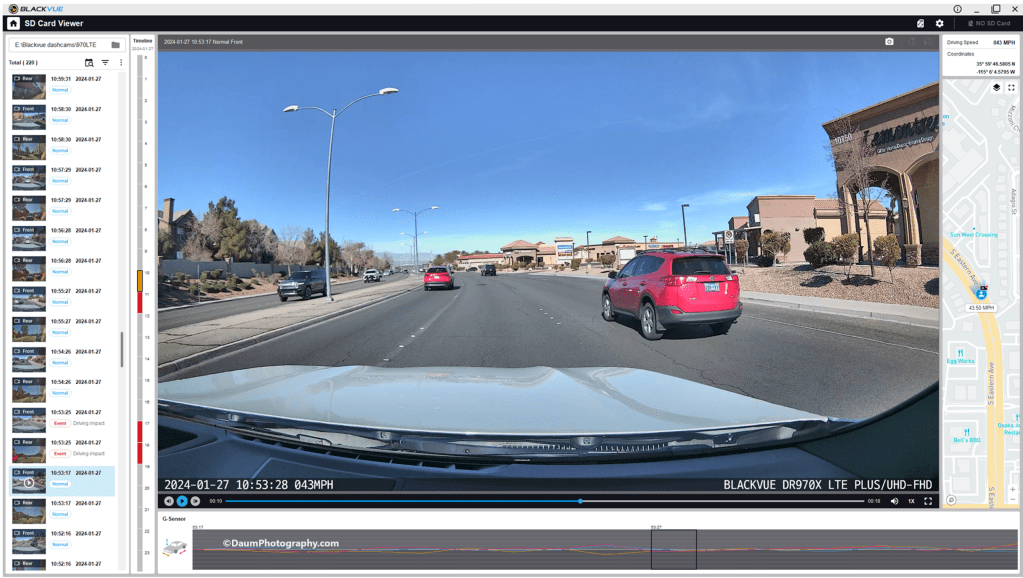
By the way, those simultaneous front and back views were generated using the free BlackVue PC app.  It is a very easy to use application that also can show each video along with a GPS location on a dynamic map, as well as a g sensor graph.  The g sensor shows any impact or bumps/rough road (which will also result in the video getting an “Impact” vs “Normal” label.  Here is what it looks like:

Here are some still images with the DR900S on the left and DR970X on the right:

Front camera

Rear camera

As with the videos, the greatest difference between the DR900S and DR970X is in the nighttime comparisons.  All images are viable straight from the respective cameras and could, if necessary, be sharpened with editing software.  One real advantage of the DR970X Plus series is that the WiFi is always on and that allows you to quickly view any saved or live images using the BlackVue app on your phone.  For the DR900S you have to turn on the WiFi at the front camera unit by pressing a button until it turns on (and it will automatically turn off in a few minutes).  Once turned on you can then link to the camera using the app.

Summary

As in prior comparisons, BlackVue continues to produce top line dashcams with the most important features built in.  Of course, quality does come at a price with the DR970X 2CH Plus including a 64GB microSD card retailing at US$474.99 and the DR970X LTE 2CH Plus including a 64GB microSD card, SIM card with a free trial of 1GB for one month retailing at US$544.99.  The BlackVue DR900S has been in my vehicle for four years now and has performed flawlessly in all temperatures from freezing to extreme desert heat. I have no reason to think the new DR970X Plus series won’t perform equally well. 

BlackVue states that you should use their microSD cards for optimal performance. I did experiment early on with several non-BlackVue microSD cards (all were name brand high-quality professional level cards, designed specifically for handling the frequent record events typical of security cameras designed for video recording), and while they would work for a period, inevitably they would stop working or have glitches.  Once I went back to BlackVue’s own card I never had it stop working or fail.

These cameras offer pricing plans for saving files to the cloud as well as in the case of the DR970X Plus LTE, a built-in SIM card to simplify the recording directly to the cloud.  As noted, it is easy to either download the video files or temporarily remove the microSD card and transfer the files to your computer.

The fit and finish of the new DR970X Plus is excellent (as was the DR900S) and all the included components are high quality.

If you are highly concerned about your vehicle when it is parked and unattended, you should consider purchasing optional battery packs to power the dashcam when the engine is off. One option is BlackVue’s Power Magic Battery Pack (US$159). It is designed for plugging into your accessory outlet and in turn your dashcam.  It provides about 12 hours of front camera recording or about 7.6 hours of front and rear camera recording.

A second option is to purchase Blackvue’s Power Magic Ultra Battery (US$389.99).  It is designed for either accessory plug or hardwire installation and then connection to your dashcam.  The Ultra unit is a high-capacity rechargeable unit that provides about 30 hours of record time for just the front camera, or about 19 hours record time with both front and back camera recording and can be piggy-backed to increase the total record time while parked.

Final thoughts:  Many of my readers have asked ‘Do you really need a dashcam, and if so which one?”  Hopefully this review is helpful in reaching a decision.  For me personally I always want to have documentation of what is going on around my vehicle when I am driving, so all my cars have dashcams and when I rent a car, I put in a portable dashcam before I leave the lot.  I also find it is nice to have videos of scenic drives and the ones from BlackVue are perfect for this.

Thanks for visiting and reading. If you have a question, please feel free to ask below! 

ZHIYUN Weebill 3S gimbal camera stabilizer: Steady As She Goes

By Jeff Daum, Ph.D., PPA

Simply put, a gimbal stabilizer is intended to help take videos minimizing movement created by the way you hold the camera while shooting.  If you have looked at adding a gimbal stabilizer to your equipment, you found an abundance of options out there.

This review is of the new Weebill 3S and how ZHIYUN designed it to stand out from the rest of gimbal stabilizers.  The unit was provided to me by ZHIYUN and GlobalPR.

What Is In The Box

When you order the Weebill 3S it is shipped directly from Hong Kong to you and the price includes free shipping and no additional custom’s duty and import taxes.  In my case it arrived quickly and in excellent shape.  All components are well packed.

There are two options when you place your order: the basic Weebill 3S at US$319 or the Weebill 3S Combo at US$439.  ZHIYUN is offering a 10% off discount code for my readers. Links are provided in footnote at the bottom for orders from their site or Amazon.1 I recommend the combo over the base since it includes the extension handle and wrist support which make the unit much more manageable.  Both come with the same warranty: free replacement or repair for quality defects within 15 days of receipt of product. Free repair from ZHIYUN for defective material or workmanship that results in product failure for 12 months from date of selling.

Included in the box is a heavy duty nicely designed case that can hold the Weebill 3S and all of its components as well as your camera and lens.  Though, if you are like me, you already have multiple camera cases and probably won’t end up using the ZHIYUN case.

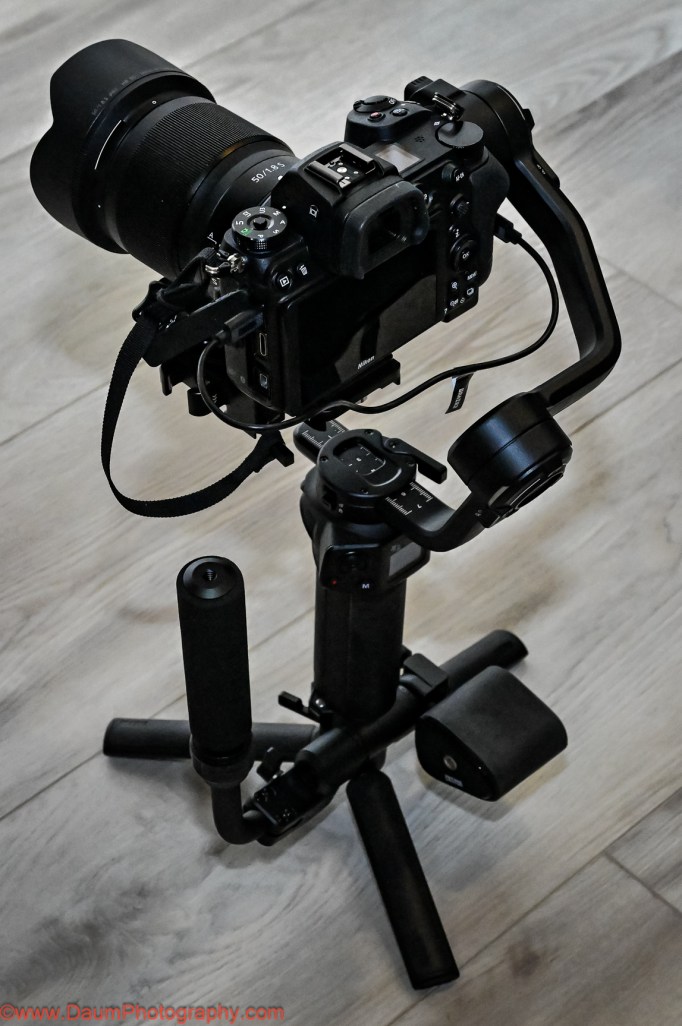
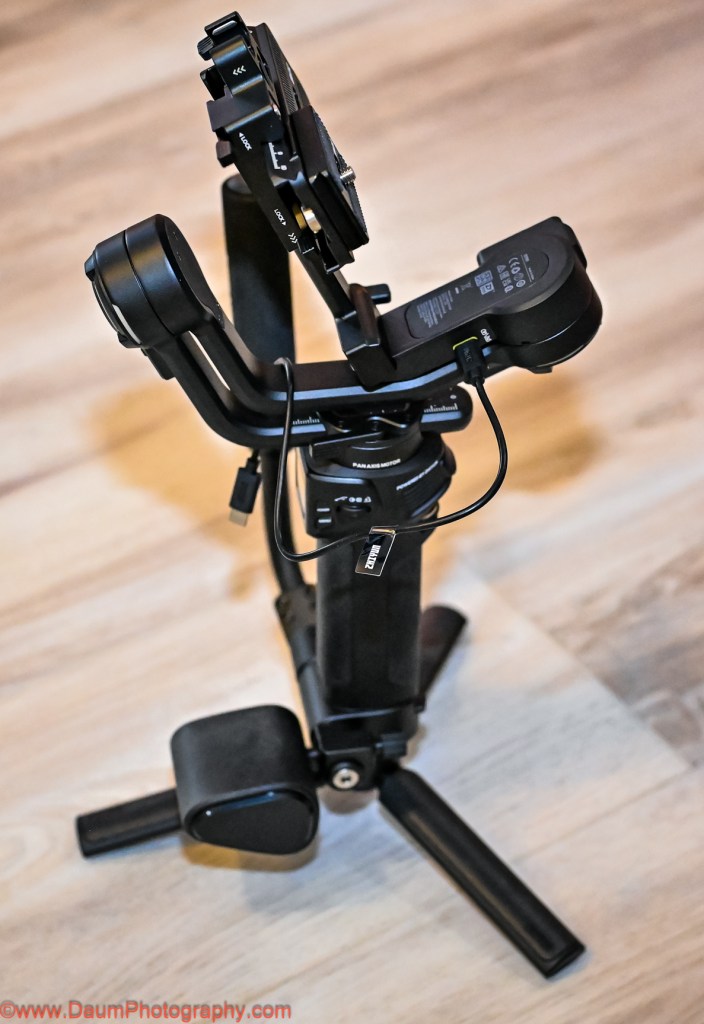
The components (image above) include #1 the Weebill 3S, #2 the extendable Sling Grip and Trans Mount Wrist Rest, #3 assorted cables for direct connection to different OEM cameras, #4 the Quick Release plate, Camera Backing Base, M4 wrench and ¼” screws, #5 Tripod base and Quick Start Guide.

The first step was to download the user manual from ZHIYUN ( https://www.zhiyun-tech.com/en/download/instruction/617?type=website&page=download_software&source=instruction ) and charge up the Weebill 3S (NOTE: as with many electronics today, no USB charger was included with the Combo.  Any USB C phone charger 14 W PD or less will do).  It takes about two hours from empty to full charge, with the state of charge showing on the small built-in screen.  Based on how you use the unit, the charge can last up to 11 hours.

Putting the components together was fairly straightforward.  NOTE: When assembling the quick release plate to the camera, the provided ¼” screw will only fit into the end of the center slot on one side- the end which has ZHIYUN printed on the underside.  It takes a few tries to get the screw to perfectly match the threads in the plate.  The same is true when putting the screws into the camera backing base.  The screws will only thread into the end of the backing base which has ZHIYUN printed on the underside.  You’ll use the provided M4 wrench to tighten the screws.

The main unit weighs 2 lb. 4.2 oz (1.026 kilograms), adding on the extension handle, tripod and mounting plate brings it to 3 lb. 13.8 oz (1.752 kilograms).

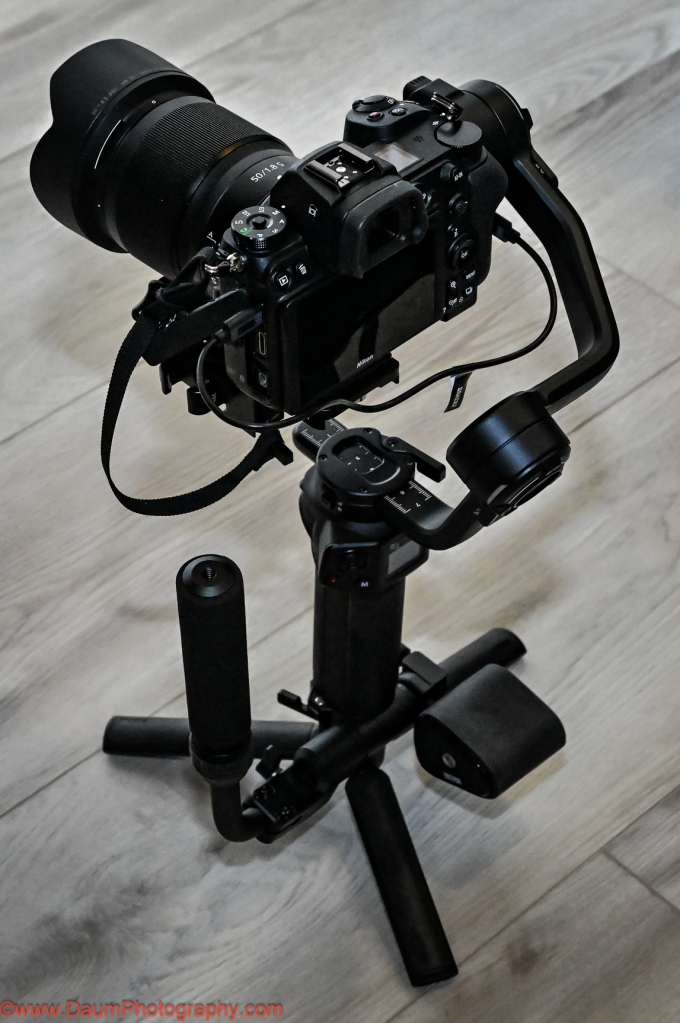
For my testing, I used a Nikon Z7 mirrorless digital camera and a Nikkor 50 mm 1.8 S lens.  This camera and lens were listed on ZHIYUN’s compatibility chart.   The actual weight of the Nikon with lens came to 2 lbs. 7.6 oz (1.1226 kilograms).

Once you get the Weebill 3S fully assembled and your camera and lens mounted, connect your camera to the Weebill 3S using one of the supplied USB cables.  Later you can potentially use a Bluetooth connection.  In my case, the Bluetooth connection would not work.

Next you will need to go through the balancing steps for each of the gimbal’s three axes.  Especially If you are new to gimbals know this is a critical step that must be completed carefully to ensure that the gimbal will work properly. 

NOTE; If you are new to using gimbals, I encourage you to watch some ZHIYUN’s videos https://www.zhiyun-tech.com/en/service/support/617/3/show?type=website&page=second_nav&source=service2#/pages/index/support/videoPage   Here is another one that is particularly helpful: https://www.youtube.com/watch?v=BzmKhXDjf2k&ab_channel=MamoAir  

The above-mentioned videos will walk you through the process including how to update the Weebill 3S software.  If you haven’t balanced another gimble in the past, you may find it frustrating the first time, but it gets easier after just a few attempts.

NOTE: the Weebill 3S is very sensitive to the slightest change in camera/lens combinations, so be sure to remove your lens cover, and have your battery and memory card inserted before doing the balancing.

After getting your camera and lens balanced, you need to allow the Weebill motor software to make final adjustments (again as mentioned in the ZHIYUN videos above).  Now you are ready to go.

INITIAL FIELD TESTS

My first test was to shoot a static object while moving around it.  For comparison I shot the scene twice, once using the Nikon on the Weebill 3S and a second time hand holding the Nikon, trying to shoot the scene as close as possible to the first time.  This would attempt to partially answer “is a gimbal set up worth it for simple videos?”

In this and the following videos, the top frame video is always the one taken using the Weebill 3S and the bottom frame video is the handheld without the use of the gimbal.  Physically for this the camera and lens are sitting on top of the Weebill 3S in the three axes gimbal set up, and you are holding it with two hands by a combination of the Weebill 3S body and either the tripod or sling grip.

As can be seen there is movement generated by the camera in both versions, but the top frame one which used the Weebill 3S has noticeably less camera induced movement.

Next test was replicating shooting a video while both you and the target are moving.

Again, there is movement generated by my moving in both versions, but the top frame one which used the Weebill 3S has less movement caused by my walking while videoing.

This next test was of the Sling Mode, where the Sling Grip is moved so that the camera and Weebill 3S are under the Sling Grip.  This setup allows for capturing images/video from a perspective starting at or near the ground/floor.  The Weebill 3S and camera are actually more easily supported by just one hand lightly on the Sling Grip.

This Sling setup resulted in very little camera movement and a perspective that would have been difficult to duplicate without the Weebill 3S unless you were lying down on the floor holding the camera.

The Weebill 3S comes programmed with several cinematic features to enable creative shots.  It can be easily set to PF or pan follow, POV point of view, F follow, L gimbals locked, and V vortex mode.  Each mode locks or unlocks individually one, two or all three axis. You can also remotely control its movement via the ZYPlay app. Here is a brief example of Vortex mode:

A fun effect that would be very difficult to duplicate without the Weebill 3S!

PRELIMINARY CONCLUSIONS

Some thoughts/suggestions:

  • ZY Play app requires your scrolling through and agreeing to a User Agreement that ran on for about a dozen screens on Android and second agreement of about ten more screens.  This one appears to be written by a legal team that never had to read it on a phone screen. Why not have a simplified agreement?

Here is just one of the extensive sets of screens.

  • Earlier production units included a magnetic key that was attached to the underside of the camera mounting bracket and could be used for tightening the attachment screws.  That is no longer provided.  However, an Allen wrench is provided to serve the same purpose.  Either go back to the magnetic key or have an attachment place on the Weebill 3S body for the wrench so it is at the ready in the field.
  • A more significant change at this stage of production occurred with the Camera Backing Base.  This used to be a Quick Release Base.  Now the Camera Backing Base attaches to the camera body with one ¼” screw and the use of the M4 wrench.  In turn, the Camera Backing Base attaches to the larger Quick Release Base using two ¼” screws and the M4 wrench.  What this means is that you can’t just release the Camera Backing Base as with previous versions but must either unscrew the base from the Quick Release Base or release and slide out the Quick Release Base to remove the camera.  When you go to replace the camera, this ends up resulting in it being in a slightly different balance point and requires the rebalancing of the Weebill 3S before proceeding.  Fortunately, I found that it normally only required the rebalancing of one of the axes.
  • At least for use with the Nikon Z7, you have to remove the camera still attached to the quick release plate to change the battery and/or the memory card.  Consider a raised camera base plate that will allow changing the battery without having to remove the camera.
  • Suggest getting a spare M4 wrench if you don’t have one handy.

Positives:

  • The Weebill 3S appears to be very well constructed and feels solid.  I had no concerns about my camera suddenly dropping off or swinging wildly out of control.
  • The Weebill 3S has a built-in LED light that you can adjust in terms of intensity from 1000 lux down, and color temperature ranging from 2600k to 5500k.  It is a very handy fill light when needed.
  • It is ergonomically designed to allow easy access to the menu options (visible on its building screen), change operating modes, turning on and off the built-in LED light, starting and stopping your camera’s recording, etc.  The front rotary switch also can be user programmed.
  • Tripod extension is very useful as both an extension of the grip and to set the Weebill 3S and attached camera down on a flat surface without it tipping over.  It can also be used to perform super smooth panorama shots either manually or through the ZY Play app automatically.
  • The quick release allows for easy change from landscape to portrait orientation with minimal or no rebalancing needed.

In Summary

I think that ZHIYUN has done an admirable job of setting this Weebill 3S three axes gimbal apart from its competition.  It is very well made, compact and reasonably lightweight.  The Weebill 3S comes loaded with usable features that will enhance your videos along with reducing shake caused by how you hold your camera and move.  Just be sure that your intended camera and lens are on the ZHIYUN compatibility chart.  Based on how sensitive I found the Weebill 3S to the positioning of my Nikon and lens, I think even though it is on the compatibility chart it was near the top limit of the Weebill’s motors.

I hope you found this useful. Please let me know if you have any questions!

Cheers

1 To obtain the 10% discount use the code DaumWB3S.
And one of these purchase links:
ZHIYUN official store: https://geni.us/wb3s_str_dp

ZHIYUN Amazon: https://geni.us/AMZ-WB3S-PR-Daum